What is value type and reference type in C# .net with Example

Home ASP.Net & C#
MVC
Interview Questions & Answers
Others
What is value type and reference type in C# .net with Sample code

Introduction 

        As a dot net developer, it is very much important to understand what is happening when we are declaring a variable. For creating an application which uses memory effectively and with better performance, we need to understand how memory is allocated while we are declaring a variable.

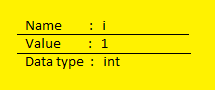
        When we are declaring a variable in C#, it allocates some memory in RAM for that variable. There are 3 parts for this memory

1. Name of the variable
2. Value of the variable and
3. Data type of the variable.
That is it can be like below

int x = 1;


A little deeper


        This is very basic understanding. If we go a little deeper, we can see there are 2 types of memory is available for storing the variable
1. Stack     and 2. Heap
        So for now just understand - the variable you are declaring will be stored in any one of this memory, depending on the data type that you are declaring. We can skip stack and heap for now.

Now lets come to our point


What is Value type

        Variables that are stored in the stack memory are called value types. Value types contain their actual data. With value types, each variable have its own copy of data. So operations on one variable does not affect the other variable.( you can understand this point after reading reference type also ).
Consider the example below ( I suggest you to try this code yourself and get better understanding)


The out put of the above code is


         This is one important point in value types. In line 2, I have assigned x to y and in line 3, I have updated the value of x to 5. But that is not affecting the value of y. This is because value type variables have their own copy of data. You can get better understanding while you complete reference type also.


        There is one more important thing for value types. After executing the method, the memory allocated for the value types are automatically get unallocated. That is immediately after the scope of the value type variables, memory will be cleared. They will not wait for the Garbage collector to run.

        All the built in data types of .net  excluding string and object are value types. Also, among the user defined data types, struct and enum are value types.
Example : int, long, float, double, decimal, byte, short, char, enum, struct etc.


What is reference type

       Now lets come to reference types. Unlike value type, reference type does not store the data directly.Instead they contain pointers and pointers will point to the actual data. Reference types are stored in heap memory. This can be like below


        So variable x contain the pointer to the memory location 100 and y points to 101. This is how reference types are storing the data. So, now it is possible that both x and y can point to same location say 100. Yes this is possible. See below. 


        Now what happens is, operations on one variable will affect the other variable, which is pointing to the same. That is, if x is going to change its value "Hello" to "Hello World", then what is going to happen here is it will change the value in the memory location 100 to "Hello World". After this operation if we check the value of y, we can see that value of y also got changed to "Hello World" because y is also pointing to the same location 100. 


        Therefore, 2 variables can reference a single( same ) object and operations on one variable can affect the other. We can see this change with example.


The output of the above will be 


We can see that both x and y have the same value even I have changed the value of x only. 


        One other thing we need to remember in case of reference types is it will not reclaim the memory immediately after the variable goes out of the scope. We need to wait for the garbage collector to run for unallocating the caimed memory.


Examples : string, object, class, array, delegate, interface etc. 

So we can conclude value types and reference types as


  • Value types contain the actual data while reference types will store reference to the data
  • Value types are stored in stack while reference types are stored in heap
  • Garbage collector is not required to unallocate the memory in the case of value type. But for reclaiming the reference types memory, we need wait for the Garbage collector to run. 

What is ASP.Net and its difference with classic ASP

Home ASP.Net & C#
MVC
Interview Questions & Answers
Others


What is ASP.Net 

ASP.Net is a server side scripting technology. It is a developent framework for building web pages and web sites with HTML, CSS , JavaScript and server side scripting. Server side scripting means code can be executed by the server , not in the client browser. So that we can use compiled code that can be run at the server. Hence ASP.Net provides increased performance by running compiled code. 

There are many differences between the classic ASP and ASP.Net.

Difference between ASP.Net and ASP

ASP.Net

1. ASP.Net webforms can have code behind file for event handling code. That is seperate code and design logic is possible ( .aspx and .cs )
2. ASP.Net webforms inherit the class written in code behind.
3. ASP.Net web applications are configurable. That is web.config file can be used for configuring the application.
4. ASP.Net is object oriented. That is OOPS concepts are implemented in asp.net.
5. Complete session and application state management.
6. ASP.Net webforms have ADO.Net and full XML support for easy data exchange.
7. Variety of compilers and tools are available.
8. Custom controls can be used with the help of @Register directive.
9. Many languages can be used for programming ( C#, VB.Net, J# etc ).

ASP

1. In ASP, code and design cannot be in separate files. That is it have mixed HTML and code logic.
2. Only a limited OOPS support. For example, Inheritance is not available.
3. ASP uses scripting languages like Jscript or Vbscript.
4. Only a limited development and debugging tools are available.
5. Custom controls cannot be possible with ASP.
6. Limited session and state management.


Send Free SMS To 5 Digit Number ( India Only )


Hi All.. 

As We all knows that it is not free to send sms to 5 digit numbers like 55455, 50888 etc.. But here I am providing a solution for this. I am not giving you a 100 % guarantee that it will work. But I am sure that it will work at some point. It is some type of hacking. This will not send the sms at the same time you click the button below. It is an agreement with one of the network providers ( I will not reveal the name - Sorry :( ). So they will allow to send the sms at some time. At that time your message will get send. And a notification will be sent to your mobile number with the status. So lets check it out.

Note : Please do not try to send more than 1 sms to same number. If you do so, your mobile number will get blocked from the free sms server. We are tracking your IP Addresses

Number
Your Message
Your Mob.Number
Submit

If you would like to know more about this and get the API for free msg sending. Please mail to sheril9209@gmail.com        
with subject - 5 digit number India Only.


How To split a string in SQL Server

SQL Function For Spliting a String in SQL SERVER

In SQL Server we do not have a built in function for splitting a string with any character. So we need to write the query for splitting a string in SQL. Here I am creating a function for splitting a string and getting the output data in a table.

CREATE FUNCTION [dbo].[fnSplitString] ( @MyArray VARCHAR(8000), @separator CHAR(1) )
RETURNS @RetTable TABLE
       (StrValue VARCHAR(256))
AS

BEGIN
       DECLARE @SeperatorString VARCHAR(10);
       SET @SeperatorString = '%' + @separator + '%'
       DECLARE @separator_position INT
       DECLARE @array_value VARCHAR(1000)
       SET @MyArray = @MyArray + @separator
       WHILE PATINDEX( @SeperatorString , @MyArray) <> 0
       BEGIN
              SELECT @separator_position =  PATINDEX(@SeperatorString , @MyArray)
              SELECT @array_value = LEFT(@MyArray, @separator_position - 1)
              INSERT @RetTable VALUES ( CAST(@array_value AS VARCHAR(256)) )
              SELECT @MyArray = STUFF(@MyArray, 1, @separator_position, '')
       END

       RETURN
END

This will create a new function. Now you can easily pass parameters to this function and get the data in a table format. Parameters are
@MyArray   - The full string which we need to split
@separator - The character by which we need to split
Here are some examples
Example 1 :
SELECT StrValue FROM dbo.[fnSplitString]('data1,data2,data3,data4',',')
The result will be

Here the separator is comma( , ).

Example 2 :

DECLARE @MyString VARCHAR(1000);
SET @MyString = 'data1;data2;data3;data4;1;2;3'
SELECT StrValue FROM dbo.[fnSplitString](@MyString,';')
 The result will be

Here the separator is semi-column(;)

Thanks for reading my post. Happy Coding. :)


How to make the header of a grid fixed ( Freeze Header )

Home ASP.Net & C#
MVC
Interview Questions & Answers
Others


How to make the header of a grid fixed ( Freeze Header )


Hi All..
In this post I will tell you how we can make the header of a grid fixed( freezing the header). Most of us are using grid control for displaying the data in a grid view structure. It is a powerful control by the .net frame work. But there are some limitations for it. I am not going to tell you the limitations. But One of the limitation of grid control is that header of the grid is not fixed. If we are displaying a large amount of rows, we need to make the grid scrollable.But the problem is that the header of the grid also get scrolled.  So at the end of the rows , user will not get an idea about which is the data corresponding to each column.


Here I am going to show how to make this possible. I am not using the grid control. I am using only html controls- div, table, css and jquery. Here I will give you only a simple structure of the html - how to make the header freeze and the content rows scrollable It is a simple structure. If you want to know what should be the structure to make this posssible, you can continue reading. If you want to know and need to bind dynamic datas to this grid( from datatable or some other souces) and make it scrollable, you can refer the new post here.  If you want to know how to dynamically bind data to this structure from database tables, you can see more details here.

So let us start with this.

Here I am using 2 divs, 2 html tables, css and javascript(jquery).
Step 1.
Copy and paste the following html codes into your .aspx or html page.

<div>
    <div id="divHeader" style="background-color:#ccc;" >
        <table class='gridstyle'>
            <tr style='height:43px; ' class='clsTableHeader' >
                <td class="ClsProduct1" >Product Name</td>
                <td class="ClsProduct1" >Product Code</td>
                <td class="ClsProduct1" >Product Type</td>
                <td class="ClsProduct1" >Price</td>
                <td class="ClsProduct2" >Number</td>
            </tr>
        </table>
    </div>
    <div id="divContent" runat="server" style="height:250px;overflow:auto;" >
        <table class='gridstyleBody'>
            <tr style='height:43px;background-color:#E4F5FC; ' class='clsTableHeader' >
                <td class="ClsProduct1" style="font-weight:normal;text-align:left;" >Product Name</td>
                <td class="ClsProduct1" style="font-weight:normal;text-align:left;" >Product Code</td>
                <td class="ClsProduct1" style="font-weight:normal;text-align:left;" >Product Type</td>
                <td class="ClsProduct1" style="font-weight:normal;text-align:left;" >Price</td>
                <td class="ClsProduct2" style="font-weight:normal;text-align:left;" >Number</td>
            </tr>
            <tr style='height:43px;background-color:#EFEFEF; ' class='clsTableHeader' >
                <td class="ClsProduct1" style="font-weight:normal;text-align:left;" >Product Name</td>
                <td class="ClsProduct1" style="font-weight:normal;text-align:left;" >Product Code</td>
                <td class="ClsProduct1" style="font-weight:normal;text-align:left;" >Product Type</td>
                <td class="ClsProduct1" style="font-weight:normal;text-align:left;" >Price</td>
                <td class="ClsProduct2" style="font-weight:normal;text-align:left;" >Number</td>
            </tr>
            <tr style='height:43px;background-color:#E4F5FC; ' class='clsTableHeader' >
                <td class="ClsProduct1" style="font-weight:normal;text-align:left;" >Product Name</td>
                <td class="ClsProduct1" style="font-weight:normal;text-align:left;" >Product Code</td>
                <td class="ClsProduct1" style="font-weight:normal;text-align:left;" >Product Type</td>
                <td class="ClsProduct1" style="font-weight:normal;text-align:left;" >Price</td>
                <td class="ClsProduct2" style="font-weight:normal;text-align:left;" >Number</td>
            </tr>
            <tr style='height:43px;background-color:#EFEFEF; ' class='clsTableHeader' >
                <td class="ClsProduct1" style="font-weight:normal;text-align:left;" >Product Name</td>
                <td class="ClsProduct1" style="font-weight:normal;text-align:left;" >Product Code</td>
                <td class="ClsProduct1" style="font-weight:normal;text-align:left;" >Product Type</td>
                <td class="ClsProduct1" style="font-weight:normal;text-align:left;" >Price</td>
                <td class="ClsProduct2" style="font-weight:normal;text-align:left;" >Number</td>
            </tr>
            <tr style='height:43px;background-color:#E4F5FC; ' class='clsTableHeader' >
                <td class="ClsProduct1" style="font-weight:normal;text-align:left;" >Product Name</td>
                <td class="ClsProduct1" style="font-weight:normal;text-align:left;" >Product Code</td>
                <td class="ClsProduct1" style="font-weight:normal;text-align:left;" >Product Type</td>
                <td class="ClsProduct1" style="font-weight:normal;text-align:left;" >Price</td>
                <td class="ClsProduct2" style="font-weight:normal;text-align:left;" >Number</td>
            </tr>
            <tr style='height:43px;background-color:#EFEFEF; ' class='clsTableHeader' >
                <td class="ClsProduct1" style="font-weight:normal;text-align:left;" >Product Name</td>
                <td class="ClsProduct1" style="font-weight:normal;text-align:left;" >Product Code</td>
                <td class="ClsProduct1" style="font-weight:normal;text-align:left;" >Product Type</td>
                <td class="ClsProduct1" style="font-weight:normal;text-align:left;" >Price</td>
                <td class="ClsProduct2" style="font-weight:normal;text-align:left;" >Number</td>
            </tr>
            <tr style='height:43px;background-color:#E4F5FC; ' class='clsTableHeader' >
                <td class="ClsProduct1" style="font-weight:normal;text-align:left;" >Product Name</td>
                <td class="ClsProduct1" style="font-weight:normal;text-align:left;" >Product Code</td>
                <td class="ClsProduct1" style="font-weight:normal;text-align:left;" >Product Type</td>
                <td class="ClsProduct1" style="font-weight:normal;text-align:left;" >Price</td>
                <td class="ClsProduct2" style="font-weight:normal;text-align:left;" >Number</td>
            </tr>
            <tr style='height:43px;background-color:#EFEFEF; ' class='clsTableHeader' >
                <td class="ClsProduct1" style="font-weight:normal;text-align:left;" >Product Name</td>
                <td class="ClsProduct1" style="font-weight:normal;text-align:left;" >Product Code</td>
                <td class="ClsProduct1" style="font-weight:normal;text-align:left;" >Product Type</td>
                <td class="ClsProduct1" style="font-weight:normal;text-align:left;" >Price</td>
                <td class="ClsProduct2" style="font-weight:normal;text-align:left;" >Number</td>
            </tr>
        </table>
    </div>
    </div>

 Step 2 
Copy and paste the style also.


<style type="text/css">

.gridstyle

{

    border:none;
    border-collapse:collapse;
    border-right:none;
    font-family: Tahoma, Arial, Verdana;
    font-size: 11px;
    text-align:left;
    width: 100%;
    min-width:400px;
}
.gridstyleBody
{
    border:none;
    border-collapse:collapse;
    border-right:none;
    font-family: Tahoma, Arial, Verdana;
    font-size: 11px;
    text-align:left;
    width: 100%;
    min-width:400px;
}

.ClsProduct1
{
    border:1px solid #FFFFFF;
    width: 20%;
    font-weight:bold;
    text-align:center;
}
.ClsProduct2
{
    border:1px solid #FFFFFF;
    font-weight:bold;
    text-align:center;   
}

</style>

Now everything is done. Copy and paste this code and see how it works. It makes the structure as you want. You can use this structure for making the header fixed. If you think you cannot bind dynamically data from the datatable or xml, you are wrong. It is very simple. It is simple than we are binding data to the grid control. For binding data to the grid view control we need to create the item templates etc. In our structure, it is not needed. It is very simple. I have given explanation and C# code on how to dynamically bind data from a datatable to our gridview structure. To know how it is possible, you can refer here. 

Thanks for reading my post. Have a great day. Happy coding. :)